
How many times have you thought of ways that could help you bring people into your SharePoint portal. Ways that can help sell SharePoint internally. You want your users to really use SharePoint for everything they do. Well, if you’ve done or worked on search solutions, you probably seen or heard of custom IE search providers.
You can create your own search provider by accessing this page and building your provider definition file (XML). Page address is: http://www.microsoft.com/windows/ie/searchguide/en-en/default.mspx
Ok, now you know what it is, here’s how I did it on my SharePoint Foundations install on Windows 7 (not like it matters :-))
Step 1 – Access my site and enter the search term TEST into the search box

Step 2 – Hit Enter to see results returned by SharePoint

Step 3 – Highlight and copy the full URL in the IE address bar
Step 4 – Access the Add Search providers page (link provided above). Insert the URL into the URL text box. Enter a name for your provider.
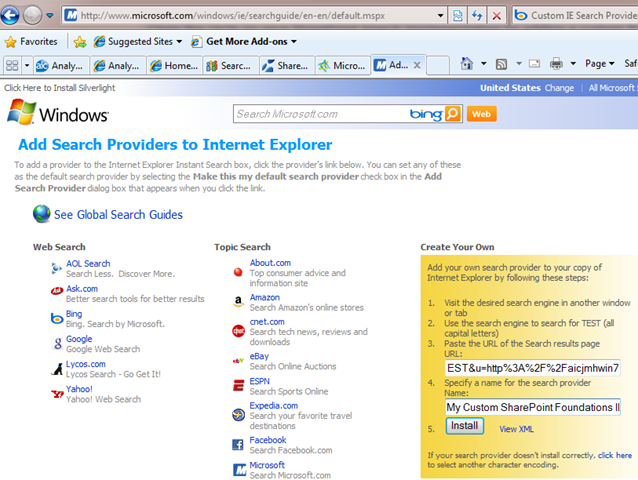
Step 5 – Either click View Xml or Install. I clicked View Xml first.
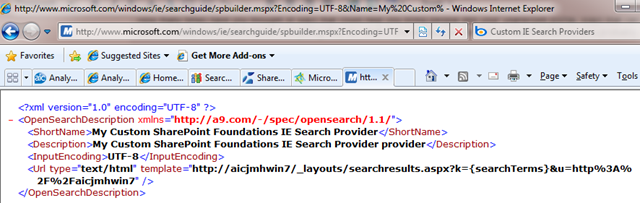
Step 6 – If you like what you see, go back, re-enter the URL and Name then click Install. Click Add.

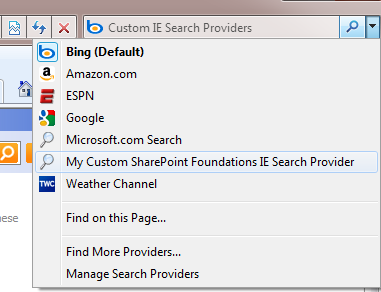
Step 7 – Choose your new custom search provider from drop down and have fun! No need to show you what happens 🙂
Take it easy!
 Johnny Harbieh
Leave a comment